


5 Ways to Use Google Docs in the Classroom
Google Docs is a user friendly suite of online collaborative tools that come with tremendous potential for use in the classroom. Last year all of the students in our school received Google Docs accounts and I was kept quite busy getting students and teachers up and running with the new tools, then discovering innovative ways to use them as effective tools for learning. Here are some of the favorites.
Collaborative Writing
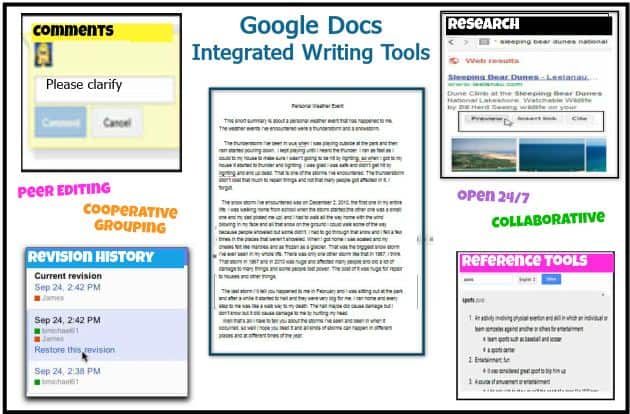
Sharing and commenting provide students with opportunities to receive immediate feedback on their writing from teachers and peers in the 24/7 classroom. The integrated reference tools and smart spell checker provide students with convenient writing support right on the page. The built in research tool expands opportunities for students to engage in real world writing and streamlines the process of creating links and citations with a handy one click feature. For students using a variety of sources in their writing, Google Docs integrates seamlessly with EasyBib.
In Box
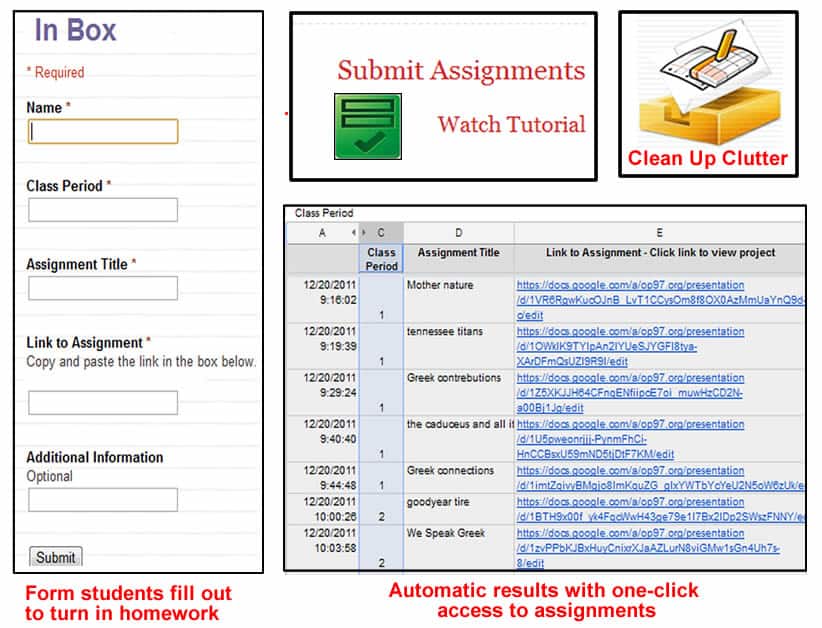
One of the challenges of using Google Docs with a class full of students is in managing all those Google Docs. While it’s fairly easy for students to learn to share their work teachers, the clutter that ends up in teacher’s email boxes can be overwhelming. To solve this problem John Miller came up with the idea of using a Google Form to collect assignments. Here is how John’s invention works:
- Teachers create and publish a Google Form to be used as an In Box.
- When it’s time to turn in a Google Doc, students complete the simple form and submit a link to their Google Doc.
- The information submitted by students automatically populates a spreadsheet to be used by teachers to keep track of assignments and also to quickly access those assignments for grading and review.
Collaborative Brainstorming
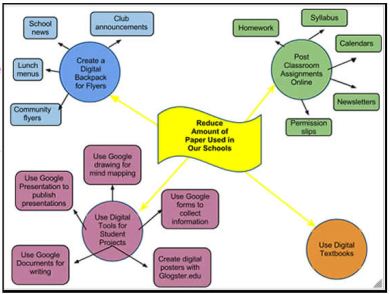
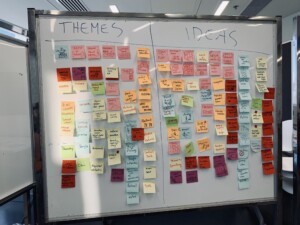
The features available in the drawing component of Google Docs are well-suited for online, collaborative brainstorming sessions that provide students with opportunities to work together to develop ideas. Digital brainstorming sessions provide all students with an opportunity to contribute, unlike traditional brainstorming sessions which encourage contributions from the “quick thinkers” in the room. Students can use shapes, arrows, text, and imported images to build a visual map for any task. The revision history uses colors to highlight and tracks changes to any Google Doc, making it easy to see what each student has contributed to the big picture.
Self-Grading Quiz
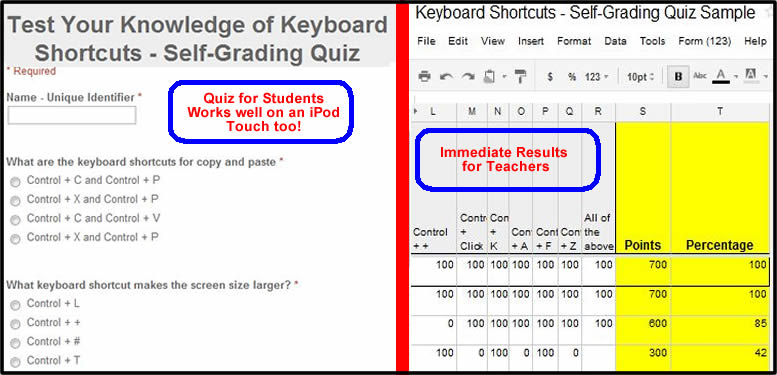
Provide students with immediate feedback and increase motivation by creating a simple self-grading quiz with a Google Form. Just create a quiz with a few multiple choice questions, take the quiz yourself to submit the correct answers, and pop a simple formula into the spreadsheet end to let the technology do the grading for you. Immediately publish the spreadsheet of results and teach students how to use the find tool (control + f) to quickly find their score and significantly raise the stakes to increase student motivation. Please note: To avoid public humiliation and hard feelings make sure you require students to sign in with some sort of unique identifier that protects their privacy.
A Virtual Copy Machine
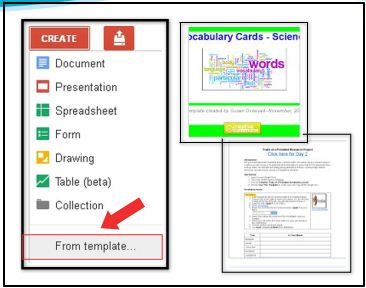
If you’re looking for an easy and efficient way to provide students with a starting point for a digital project, Google Docs Templates can help. You can save time and guide the learning by providing students with a consistent page format by using and creating your own templates. A Google Docs template is like a virtual copy machine. There are plenty of user-submitted templates already created and available for public use and there is even a category for Students and Teachers.
Final Thoughts
Google Docs is constantly evolving, adding new features, and becoming more useful for teaching and learning. If you haven’t yet put Google Docs to the test, I suggest you try it.



mark macnamara
As a novice blogger i am finding blogs like this inspirational. I tutor at a tutor house and can see uses for google docs in that setting.
Amie
Susan, I too agree that Google Docs is an excellent tool for the classroom. Thank you for your post. In particular, Google Spreadsheets is an excellent and free way for students to learn spreadsheet basics and applications, which in turn, can improve problem-solving and analytical skills. For instance, with spreadsheets, students can analyze data, conduct an experiment, create a decision framework, among others. A resource I'd like to share with you is Spreadsheet Solving: (www.spreadsheetsolving.com). Here is a link to the overview video: http://www.youtube.com/watch?v=rGEkeik0yJo.
Danielle
There are so many uses for Google apps in my classroom. It is a great tool for getting opinions/feedback from students, the use of group discussion in a Google doc, peer editing and collaborating on writing projects, tests and quizzes, and etc. I have not been utilizing this resource as much as I would like to because I was not very familiar with it. Now that I have had the training, I intend on incorporating Google apps into my lessons more frequently.
amandac
Google Docs is a great educational tool for the classroom! I enjoy using docs to allow students to write reflections and ask questions. I enjoy the nontraditional opportunity for journal writing.
Matt R.
There are so many cool ways to use these apps in the classroom! I really like the virtual copy machine. That is a nice way to get students to use technology in a way other than the normal cliche power point. I would also use it for students to write collaboratively. It is so important to have students work together and this makes it very easy to do so. And finally, in a box makes it easy top stay organized. And as teachers, who doesn't love that?!
Lucian Bogdan
I really like the Self-Grading Quiz App. I can post Practice Tests online through Google docs that students can do and receive immediat feedback. This will be a great way for the students to study for a test or quiz.
Replies
Xiaoli Xu
How can you do it? I really want to learn how put the test via Google doc and how can I mark them please.
Carole Ross
I haven't had a chance to use Google docs other than now in this class. I do plan on using it in my new classroom in the fall. I particularly like "In Box" where student send you their link that ends up in a spreadsheet so you only need to click on their link to check their work. I also plan on using Google forms to do surveys with students and teachers. The school where I will be teaching uses Google docs for everything so I have a lot to learn to be an experienced user with them.
Erin K
Susan, I really enjoy this article. It helps learning about the format and ways to use Google Docs a little bit easier. I personally think that the collaborative writing aspect of Google Docs is great. It seems like a very beneficial tool for students and teachers to use because it allows teachers to go into the documents at anytime and provide feedback, and it gives the students a reference tool, a spell check, and easy access to cite work that they may be using in their project. Google Docs are a great opportunity to allow differentiation when it comes to writing! I can't wait to continue learning more about this !
Kerri B
I am a beginner at Google Docs, but have become more familiar with it during this past school year. I know of some schools that do all their planning meeting scheduling on Google calendar, so it can be accessed by anyone at any time, and changes can easily be made. Since I teach first graders and they are just beginning to type, there may not be much of a chance to use Google Docs with my students, but I can easily see using the google forms with parents to gather information at the beginning of the school year, and it would be interesting to see if iGoogle Calendar could be implemented in our building to schedule parent teacher conferences!
Sanina Campbell
I like the collaborative writing for the classroom. I think these types of projects will encourage student creativity as well as build group collaboration. It will also teach students how to respect the ideas and creativity of others.
Maura S.
I really like the idea of having an In Box. As a teacher, I can't stand all the paperwork that is involved. I love having everything organized and keeping track of papers seems like a waste of time. Having an In Box would be an awesome way to save paper and help keep classrooms looking neat and organized. I also really like the idea of creating self-grading quizzes. My students love anything that has to do with computers so I really like the idea of having their assessments be online.
Stacy E
I really like the idea of the collaborative brainstorming. My special education students have a difficult time contributing to a specific in class conversation during lessons. This would give them a way to think first then take some time to contribute to a topic and know that they have expressed a worthwhile opinion, instead of feeling "shut out" of the conversation! Great tool!!
Mary Jo H
I haven't experimented a lot with Google Docs, but I do like the idea of a couple of features: 1 the self-grading quiz, 2 the collaborative calendar and 3 collaborative brainstorming. These 3 things I would like to try to use in my classroom next year.
Lisa S.
I had no idea Google Docs had a drawing component. After reading the Collaborative Brainstorming section, I can see how students could use this to create graphic organizers. What a great tool!
April T.
As a high school teacher, I can see that using google forms would be super helpful for collecting data. At the beginning of the semester, it can be used as a paperless way to gather information about your new students. Also, the ability to quickly reference any information you may need to know about your students, rather than having to dig for data or find forms that you filed away. Also, a great tool to use at the end of the semester to gather feedback from students about the course and my teaching style.
Rae
I find it very user friendly and there are so many different ways to use Google Docs in the classroom
Nola S
I never thought to use Google forms as an assessment tool. I think it's a great idea to provide immediate feedback. Students like to see how they are doing compared to others, so even with a private login they would have an opportunity to do so. I would also really like use to make use of the inbox. I'm always looking for a way to streamline going paperless!
Dale Tanner
This was a great article. Filled with terrific information.
Patty
The templates seem like useful tools.
Nicole Brunsman
This is a nice list. I have only been recently introduced to Google Docs so this is a good way to see some of the uses it has to offer. The collaborative brainstorming can be a great tool for group projects and allows students to work together from anywhere. The self-grading quiz also looks very useful. I know how anxious some students get waiting to know the scores they've received on quizzes so this is a great way to let students get immediate feedback. Overall this a very helpful list!
stranger14
A good way to use Google Docs is for peer editing. Students can be assigned a peer and work with that individual for the entire writing process. This can be a good way for students to get help during the process instead of waiting until they think the essay is complete and waiting for teacher feedback. The chat and comments features are especially helpful with the peer-editing process.
Daniel Tito
The two tools that stuck out to me the most in this blog post were the collaborative writing and the self-grading quiz. The collaboration feature in Google is something that I believe sets it apart from other platforms. In the past for students to work on a project together they would all have to gather around one computer and there was always bound to be a student who was off-task because he/she wasn't the one that was working at the computer. With the collaboration piece all students become responsible for the creation of the media. The self-grading quiz is also a great tool as I work in a 1:1 district and we are trying to move away from paper. The self-grading quiz will allow me to administer assessments through the computer and save paper (as well as time!)
Amanda S.
In my education technology position, I like the idea of using the virtual copy machine feature. I am responsible for establishing standards, processes, and procedures, for all digital media (for academic purposes) at my college. Being able to create templates for my coworkers allows me to ensure consistency. For example, we create spreadsheets for all digital media services and by using the Virtual Copy Machine, the spreadsheet for one service will look identical to the spreadsheet for another.
As a future educator, I would like to use the collaborative brainstorming tool in my classroom. This is the first time I've heard of it. Far too often, certain students are left unheard, and I feel like this tool would eliminate that. Everyone has an equal chance to contribute their ideas with a tool like this. I especially think it would be useful to use if the students were creating a video project and needed to brainstorm ideas for it (where to shoot, what to wear, what props to use, etc.) I also think this tool could benefit me in my current position as well (i.e. brainstorming new technology for the classroom).
Theresa Allen
Hi Susan!
Great article on ways to use GAFE in the classroom. I love the fact that it is always evolving and changing. I would like to try Google Classroom, but having experience with Edmodo, I am a little nervous to "let it go". :) How would you compare Google Classroom to Edmodo?
Thanks again!
Theresa
Sean Callihan
I think one thing that is being missed with Google Apps, is how it can benefit us as teachers on a professional level. It does great things for us in the classroom, and that is great, but it does not need to be limited to our own classroom. It is a great administrative tool for school wide behavior reporting (Forms), inter-school discussions (Hangouts, docs), and data charting (sheets).
Tyler Belding
I think google apps can be used effectively for getting and giving quick feedback to formative assessments. This can be done with a number of applications that link outside of google as well as inside of google with forms.
Allison Kutzki
I enjoyed reading about the In box for google docs. I would like to have students collaborate more in my classroom using this tool. However, as the post says it is hard to keep track of all of them. Requiring students to submit them using a google sheet would not only teach students how google sheets work, but would also make my life easier. In the past, I have shown students how to use google docs but never made it a requirement because I did not have an easy way for them to submit. This is my solution!
I also think that collaborative brainstorming is a great way for students to share ideas with each other in a quick and seamless way. This also gives students who are generally on the more quiet side an opportunity to voice their opinions and make their ideas known.
JT Bridges
I am impressed with the functionality of Google Docs and their use in the classroom. Not being a teacher myself but as a default "teach the teacher for vendors who constantly come into CPD with "fresh, new ideas to improve productivity, I love the collaboration aspect of docs. It allows m,e to get real time feedback and speeds up content review and clears up ambiguity in a presentation or though process.
Jt
The content was informative and it seems like google docs and lesson planning and evaluation for content development and structure puts students and teachers in a position to engage one another in real time and gain real world functionality for learning.
I like the fluberoo add-on and I feel like it is an easy way to grade assignments and allows you to chart progress and email students with their real time grades.
Georgina Karvelas-Lekkas
I use Google docs in my building to help organize the counseling department. When teachers are referring students, they use a Google form that has different referral questions they need to fill out based on the specific student they are referring. At the end of each quarter, I'm able to gather all the referrals and review the data. See where our biggest struggles are in a school (ex:classroom management, attendance, SEL) and implement a variety of guidance lessons and programs to help the school improve.
Creately
I think google docs is the best collaboration tool that could be used in the clss room. Google has invented a fully fledged word-processing unit with it and its free to use by anyone.
Amanda
These are all excellent ways to use Google Docs in the classroom. My teacher often used the collaborative writing tool for my classroom in high school. This class was Current Events and it was often essential for students to share opinions. I really like the idea of having a self-check quiz. This is one of the things that sometimes detours me from liking the thought of teaching because of the hours spent grading. This is an excellent way to solve that problem. Google Docs is awesome!
Brianna Langley
The electronic tool, google docs is a wonderful piece of technology which can be very effective in a classroom. One way teachers can use this electronic tool is through having kids brainstorm online. This gives every student a chance to participate, not just the quick thinkers. It also gives students the access to an electronic brainstorming source so they may access it whenever necessary. I think this can be useful for older elementary students and junior high and high school students as well.
david scorer
Great information. What I was wondering is how you would evidence this work. I live the idea that students can share their work with the teacher, the teacher can mark the work and the student receives the feedback and then edits their work. However how could you evidence this work other than having it saved on google drive. Any feedback would be greatly appreciated.
Brianna Langley
This was a wonderful article on how teachers can effectively use technology, specifically google docs, in their classroom today. From collaborative writing, to self-grading quizzes, to even collaborative brain storming, google docs is offering students the benefits of technology while still growing in one's education today. I specifically like the idea of collaborative brain storming, because this is a tool every student can benefit from and contribute to. In a classroom, the students who immediately think of brainstorming ideas are the only ones who contribute, whereas through google docs, everyone can participate. This can help in pulling ideas for essays, reports, presentations and can contribute to the development of higher level thinking as well for students. I thoroughly enjoyed this article.
Emily
I am confused as to how to google form will do the marking for you??
Jill Ebersold
I LOVE the idea of utilizing forms to create the inbox for student work. Is there additional information about how I would be able to set it up myself?
Josh Gallmeyer
I'm excited to continue learning about incorporating Google into my classroom! [email protected]
Easy Crafts
5 Ways to Use Google Docs in the Classroom - Getting Smart by Susan Oxnevad Learn to create various types of toys - gliders, catapults, boomerangs and many other toys with these fantastic designs. Access https://goo.gl/ry6urS and Learn More!
Weldon Verlin
I believe you have observed some very interesting points, regards for the post.